Settings - Let’s Get You Started!
Settings refer to the configuration options available to customize and manage the functionality and appearance of a system or device.
Application
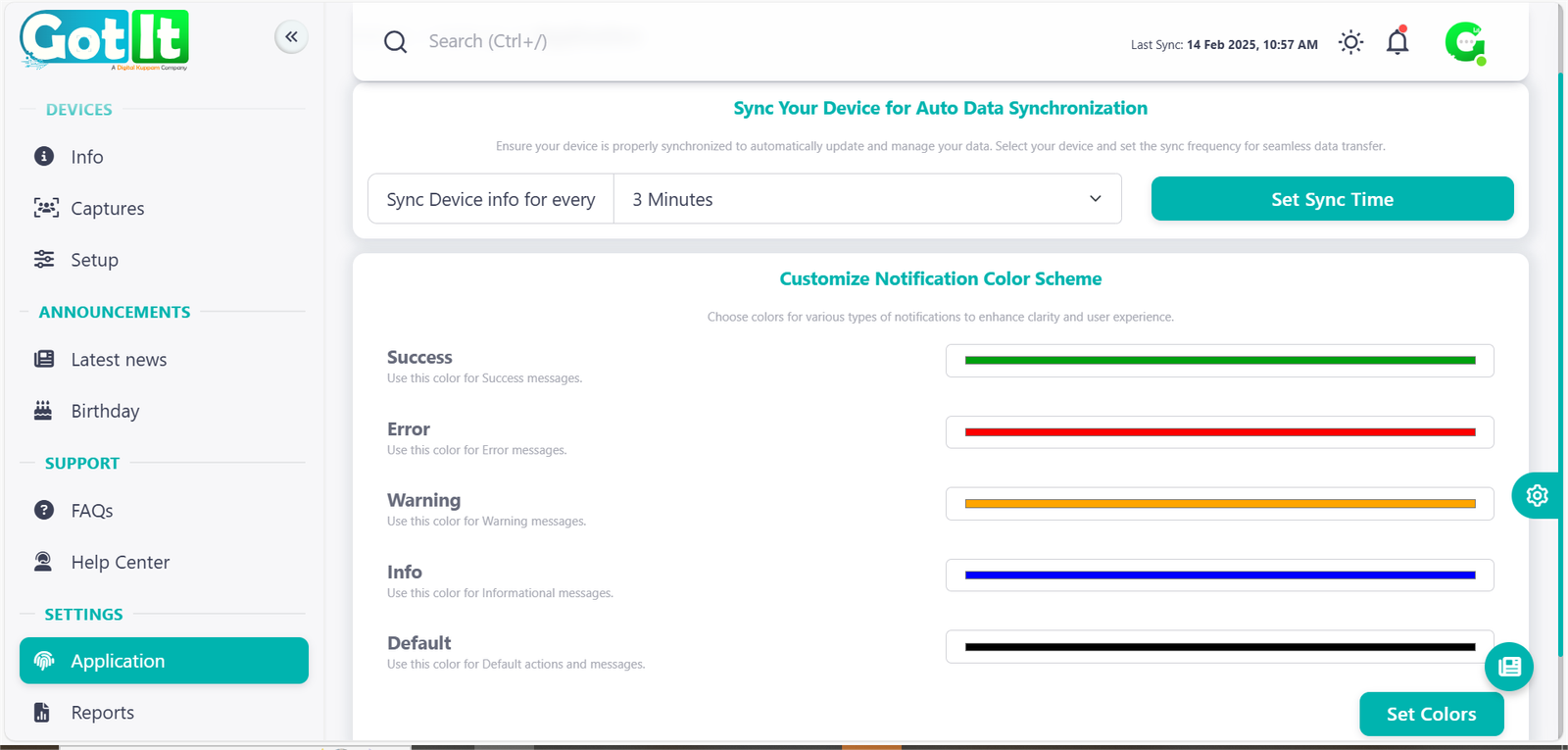
Sync Your Device for Auto Data Synchronization
Ensure your device remains up to date by automatically synchronizing data at set intervals. This feature helps maintain consistency and improves real-time data accuracy.
🕒 Sync Interval Selection: Choose a time interval (e.g., 10 minutes) to schedule device synchronization.
🔄 Automatic Updates: Ensures seamless data transfer without manual intervention.
⚙️ Easy Configuration: Set sync time with a simple button click.
✔ How to Use:
- 📌 Select your preferred sync frequency from the dropdown menu.
- 💾 Click the Set Sync Time button to save changes.
- 🔁 Your device will now sync automatically based on the chosen interval.
Customize Notification Color Scheme
Enhance clarity and user experience by assigning colors to different types of system notifications.
✅ Success (Green): Used for confirmation messages indicating that an operation was completed successfully.
❌ Error (Red): Displays critical alerts when an action fails or an issue occurs.
⚠️ Warning (Yellow): Indicates potential issues or actions that require user attention.
ℹ️ Info (Blue): Provides informational messages, such as updates or general notices.
🔲 Default (Black): Applied to system-generated messages without specific categorization.
✔ How to Use:
- 🎨 Choose a color for each notification type from the available options.
- 🖱 Click the Set Colors button to apply changes.
- 🔔 Your notification messages will now display using the selected color scheme.
Reports
Customizable Report coloumns
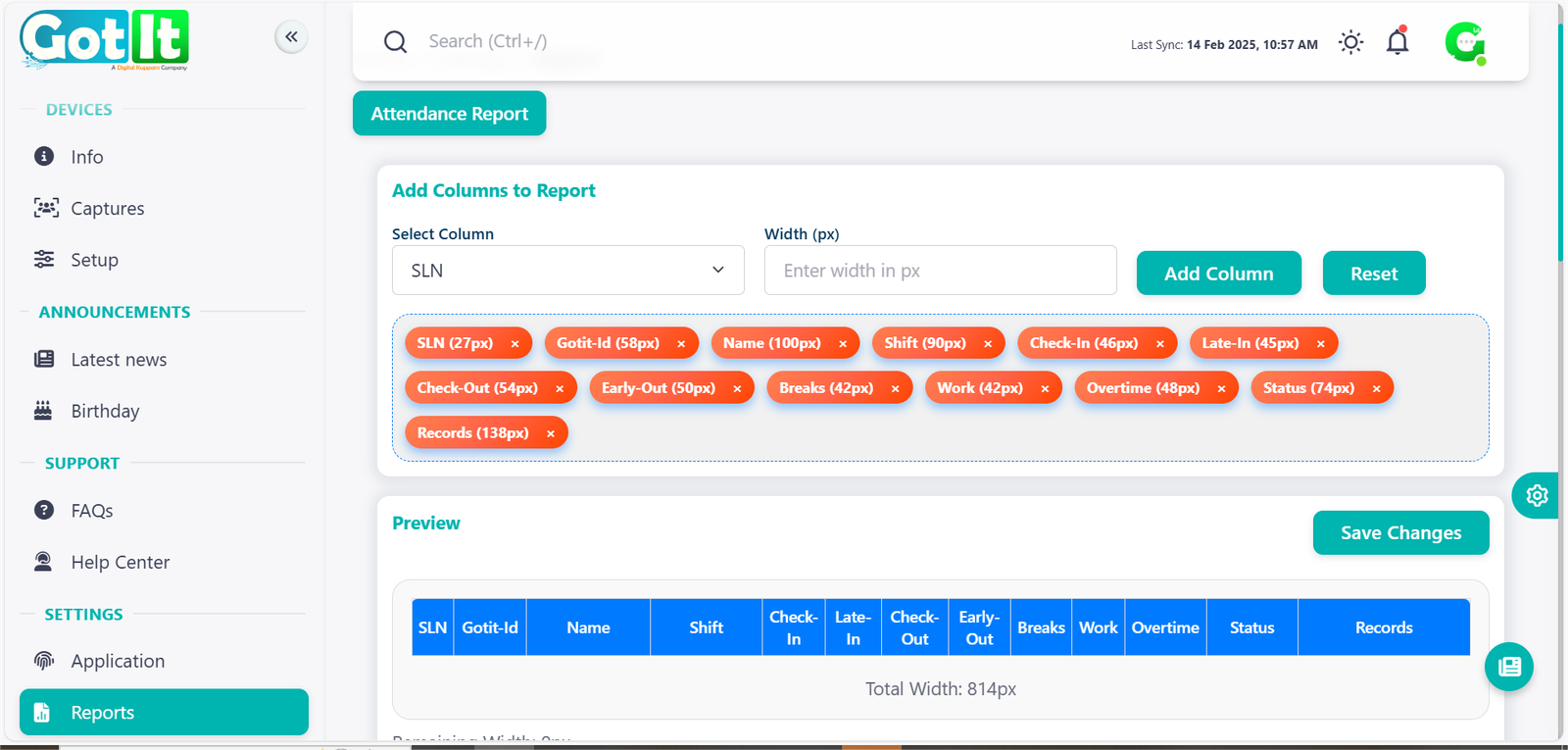
The Attendance Report Management System allows administrators to efficiently manage and customize employee attendance records. Users can select relevant columns such as Check-In, Check-Out, Late-In, Early-Out, Overtime, and Status, adjusting their width for better readability.
Key Features:
· Add Columns: Choose and customize report fields.
· Preview Section: View the report layout before saving.
· Save Changes: Apply modifications instantly.
· Color Coding: Customize attendance statuses for better visualization.
Status color customization
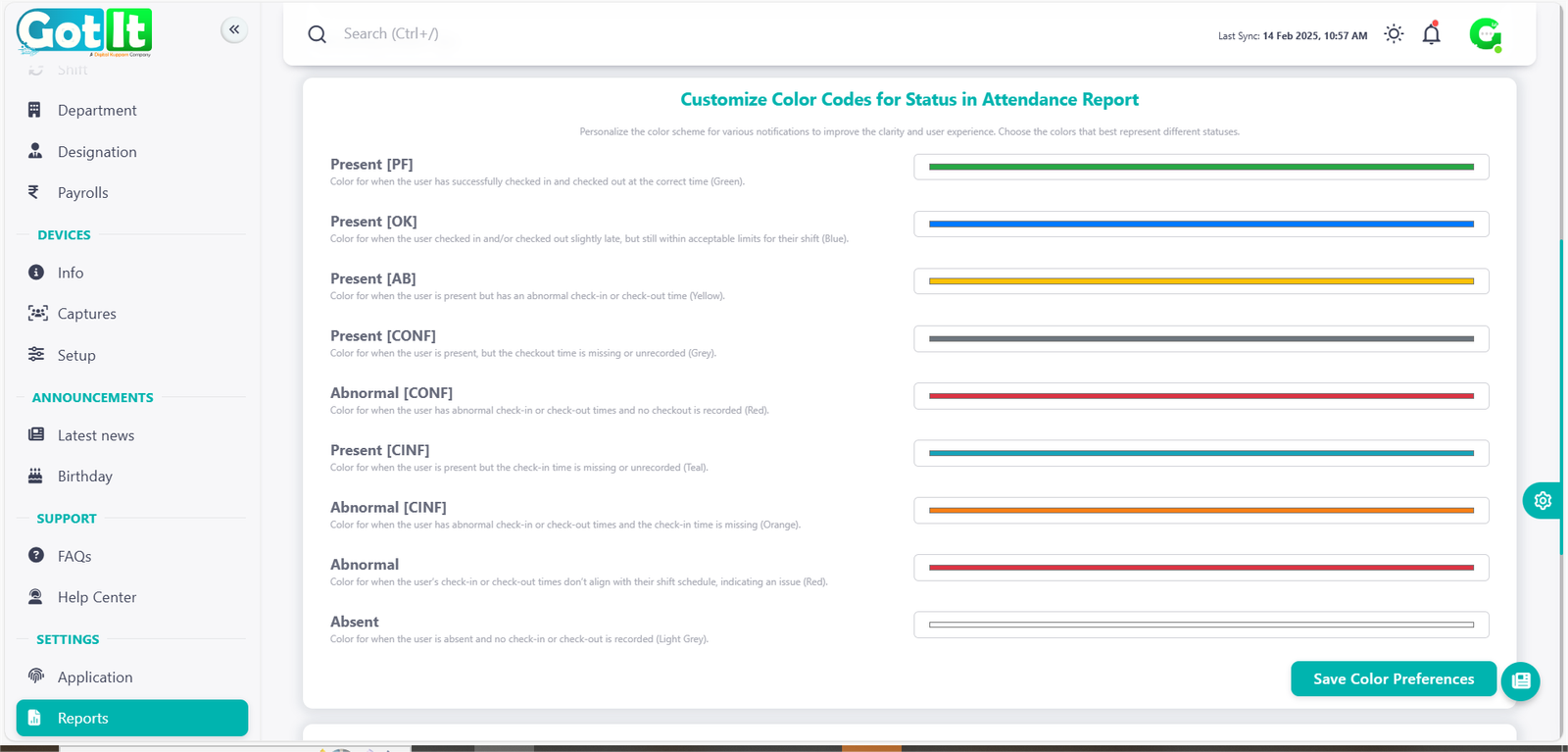
The Attendance Report System allows users to personalize color codes for different attendance statuses, making it easier to track employee check-ins and check-outs. This feature enhances clarity, helps detect anomalies, and improves overall monitoring efficiency.
Key statuses include Present [PF] (Green) for successful check-ins, Present [OK] (Blue) for slight delays, and Present [AB] (Yellow) for abnormal timings. Critical issues like missing or unrecorded check-ins are marked in Grey, Red, Teal, or Orange for easy identification.
Benefits:
✔ Quick Identification of attendance status
✔ Customizable Colors for better clarity
✔ Detect Missing or Abnormal Entries efficiently
✔ Enhanced Workforce Monitoring
Additional report customization
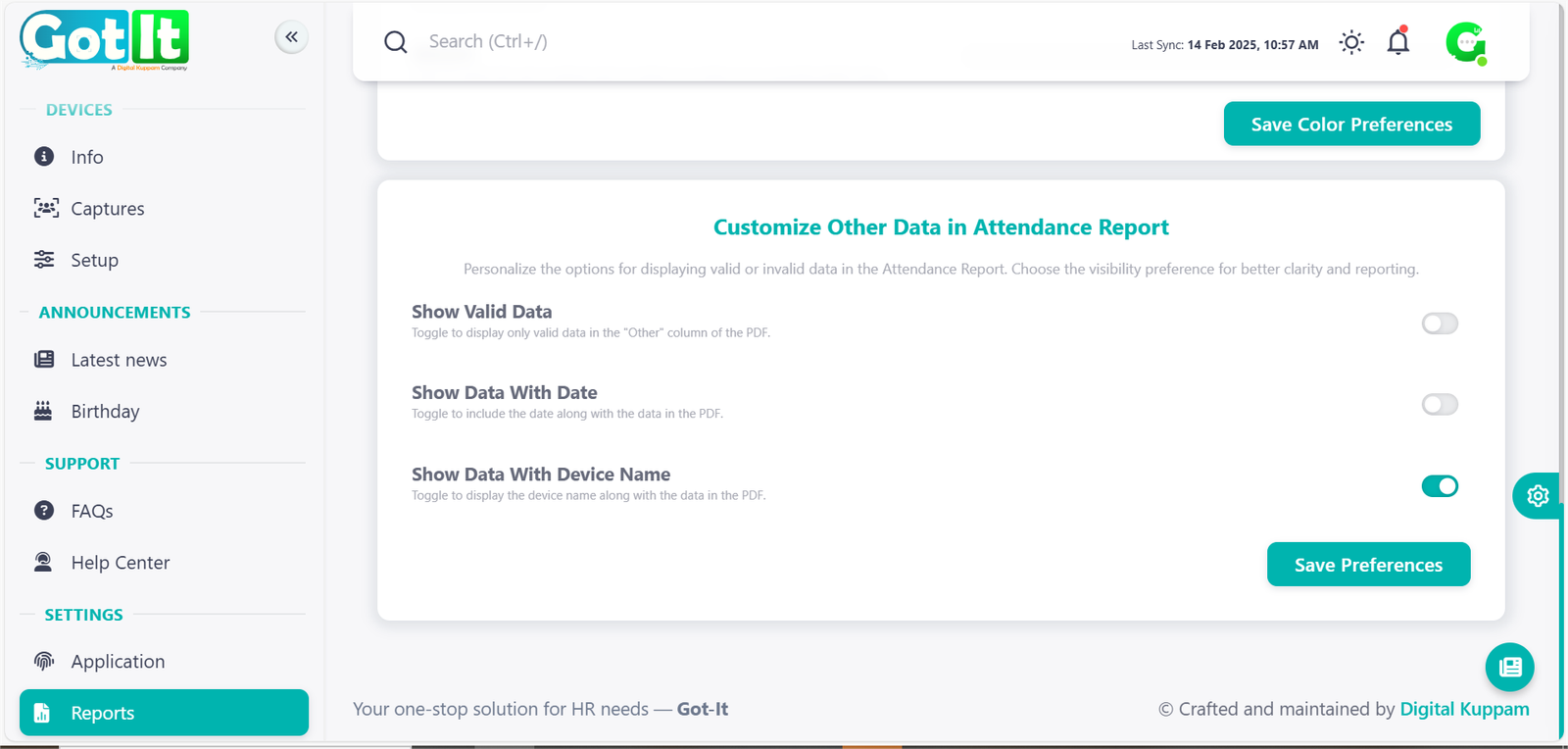
The Attendance Report System offers additional customization options to improve data clarity and reporting efficiency. Users can personalize their report preferences by enabling or disabling specific data fields. This feature ensures that only relevant information is displayed, making reports more organized and insightful.
Key Customization Options:
✔ Show Valid Data – Allows users to filter and display only valid attendance records in the report for a more streamlined view.
✔ Show Data with Date – Enables the inclusion of date information along with attendance records for better tracking and reference.
✔ Show Data with Device Name – Displays the device name associated with the attendance record, helping identify the source of check-ins and check-outs.