
Profile - Let’s Get You Started!
Specializes in innovation, quality services, customer satisfaction, and business growth.
Admin Profile
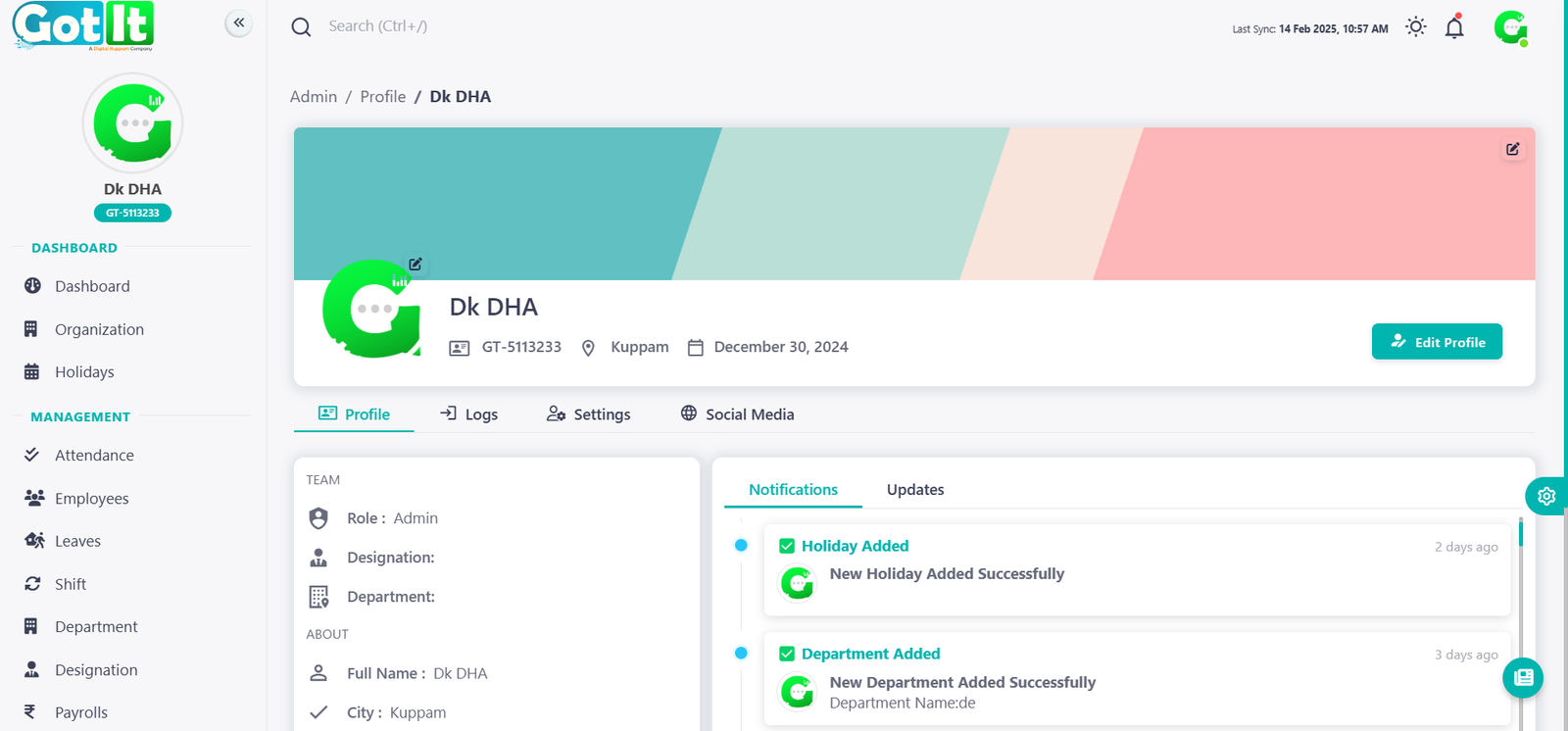
Profile Page provides an overview of your personal and organizational details, including your role, designation, and department within the team. The interface offers useful sections for easy profile mnagement and monitoring updates.
Profile Overview:
- Displays your full name, user ID, location , and date of joining (December 30, 2024).
Role and Team:
- Indicates your role as "Admin" with options to add designation and department.
Profile Customization:
- Edit your profile by clicking the "Edit Profile" button.
Notifications: Keep track of updates such as:
- Holiday Added – Confirmation of a new holiday added successfully.
- Department Added – Confirmation of a new department added successfully.
Profile Settings and Logs:
- Allows users to adjust settings and review activity logs.
Social Media Integration:
- Manage your organization's social media profiles for further engagement.
Logs
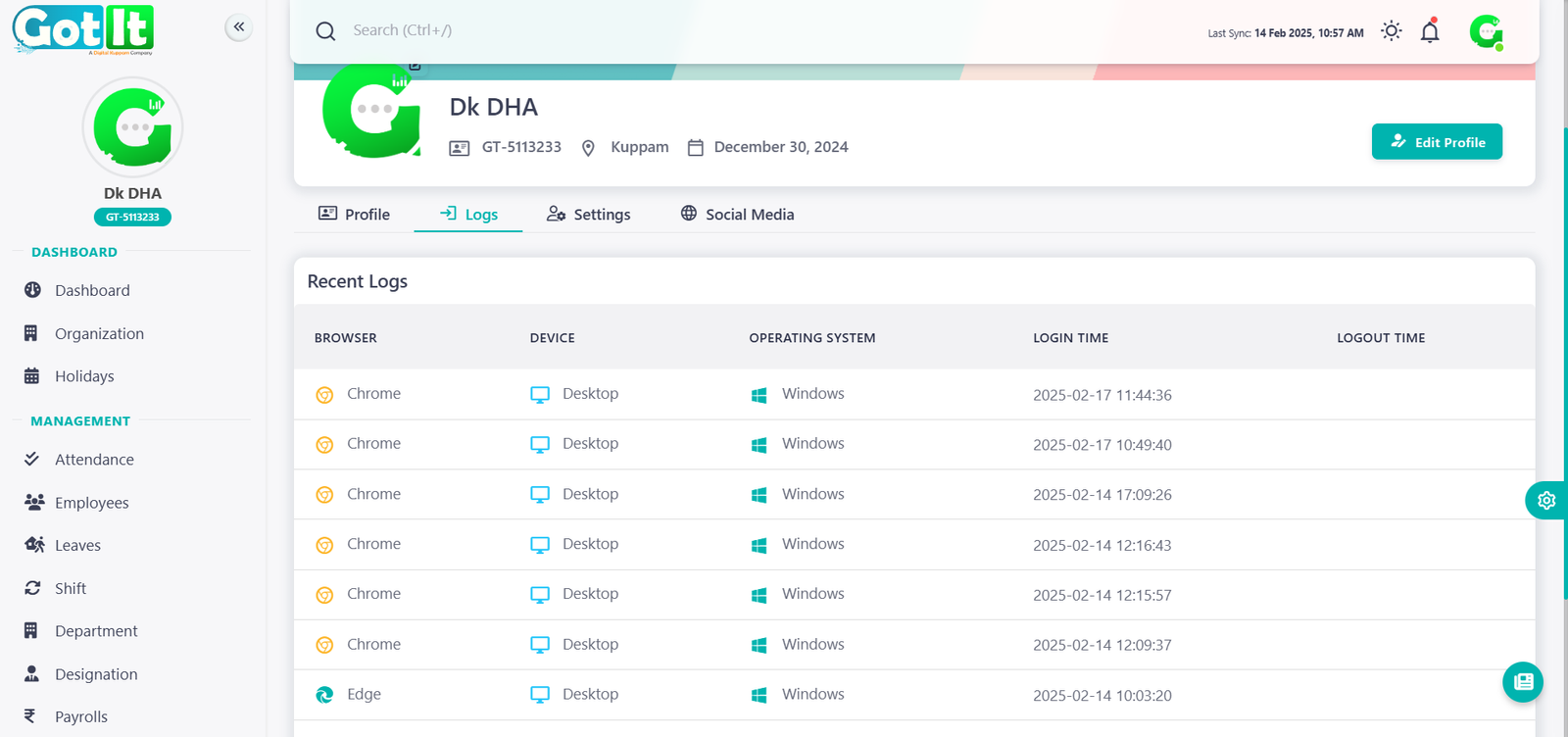
The Login History section provides a detailed overview of the admin’s recent activities, tracking their access to the system. It includes the following key details:
- Browser Used: Specifies the web browser used for logging in (e.g., Chrome, Edge).
- Device Type: Identifies whether the login was performed from a desktop, laptop, or other devices.
- Operating System: Displays the OS used during login (e.g., Windows, macOS).
- Login Time: Records the exact date and time of each login session.
- Logout Time: (If available) Tracks when the admin logged out, ensuring better session monitoring.
Settings
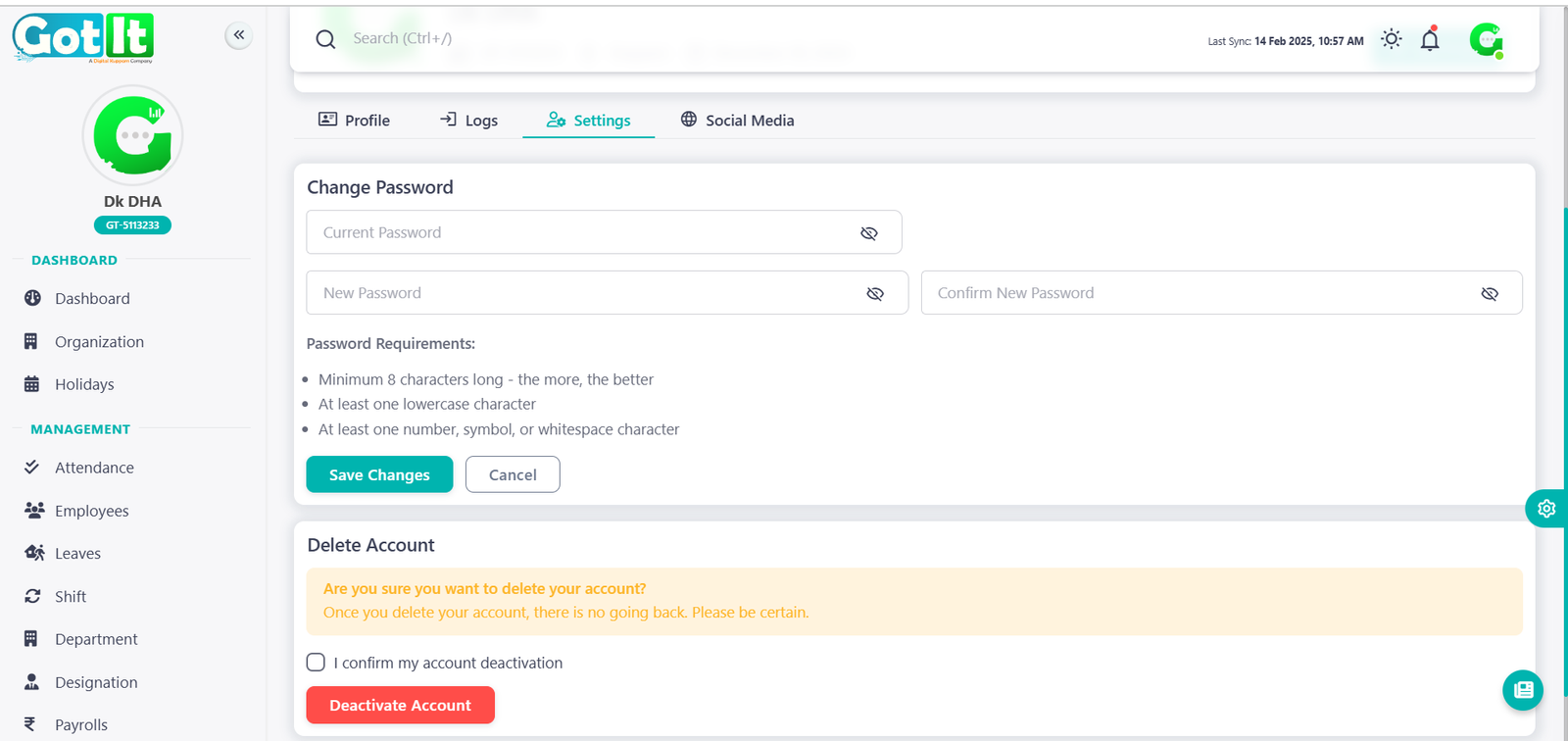
The Settings section allows admins to efficiently manage their account security and profile preferences. It includes the following key functionalities:
Change Password
Admins can securely update their password by providing:
- Current Password – Required for authentication.
- New Password – To set a stronger and more secure password.
- Confirm New Password – Ensures accuracy and prevents typing errors.
Password Requirements:
- Minimum 8 characters long (longer passwords provide better security).
- At least one lowercase letter for better strength.
- At least one number, symbol, or whitespace character for added complexity.
Action Buttons:
- Save Changes – Apply and update the new password.
- Cancel – Discard any changes made.
Delete Account
Admins have the option to permanently delete their account. A warning message is displayed to ensure awareness of this irreversible action.
Deletion Process:
- Confirmation Checkbox – Users must check this box to confirm their decision.
- Deactivate Account Button – Clicking this finalizes the account deletion.
Warning:
"Are you sure you want to delete your account?"
"Once you delete your account, there is no going back. Please be certain."
Edit Profile
Key Features:
Personal Details Section:
- First Name: Editable field, allows users to update their first name.
- Last Name: Editable field for modifying the last name.
- Email: Field to edit the user's email address.
- Phone: Editable phone number field.
- DOB: A date picker field to select or change the date of birth.
Address Section:
- Expandable section for adding or updating address details.
Action Buttons:
- Close: Exits the panel without saving changes.
- Save: Applies and saves all changes made to the profile.
Social Media
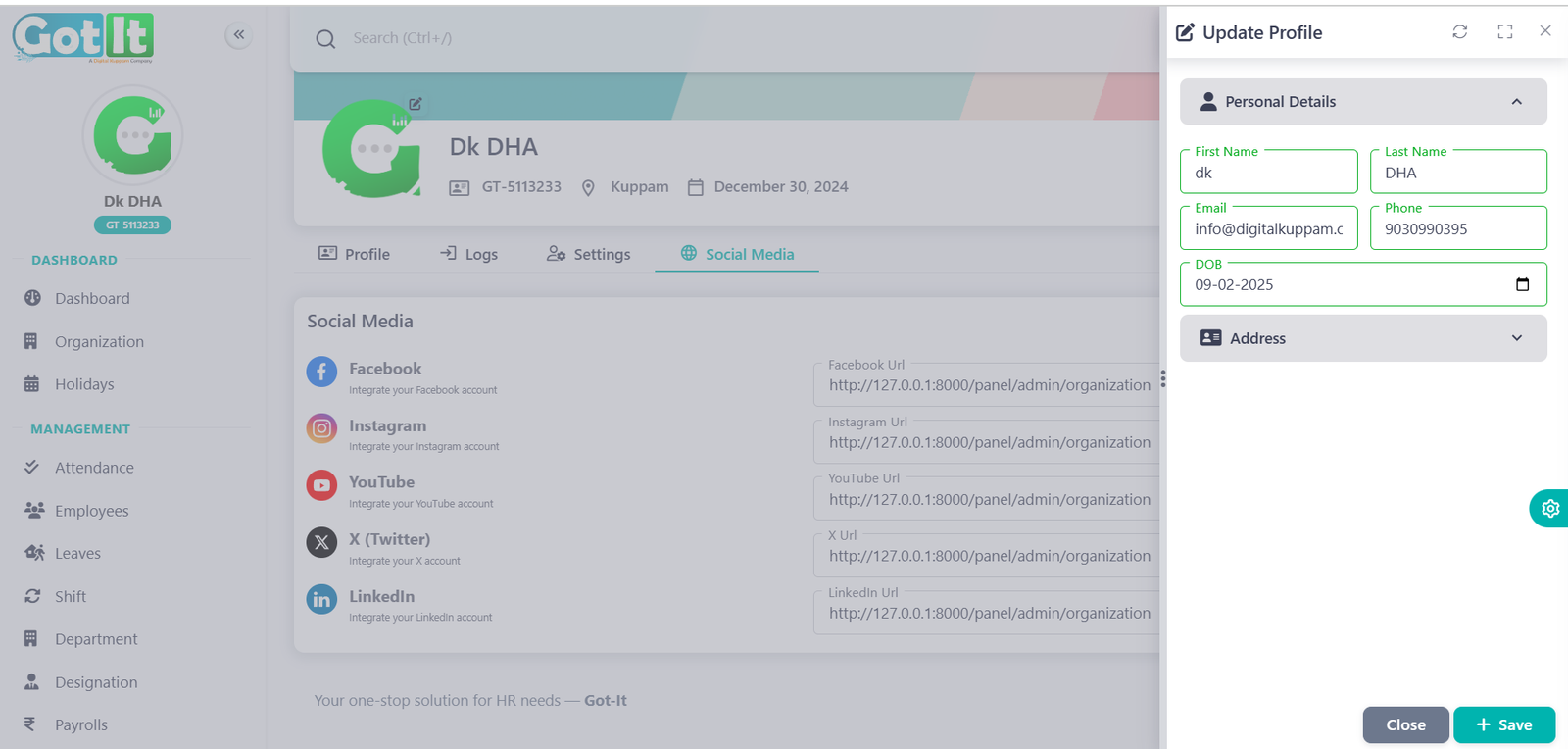
The Social Media section allows admins to manage and integrate their organization's social media accounts efficiently. It provides an easy way to add or update social media links, ensuring seamless connectivity.
Available Integrations
Admins can link and manage their organization's profiles on the following platforms:
Each platform has a designated URL field where admins can enter or update the respective social media links.
Action Buttons: