Client On Board - Let’s Get You Started!
Client onboarding is the process of integrating and setting up a new client smoothly.
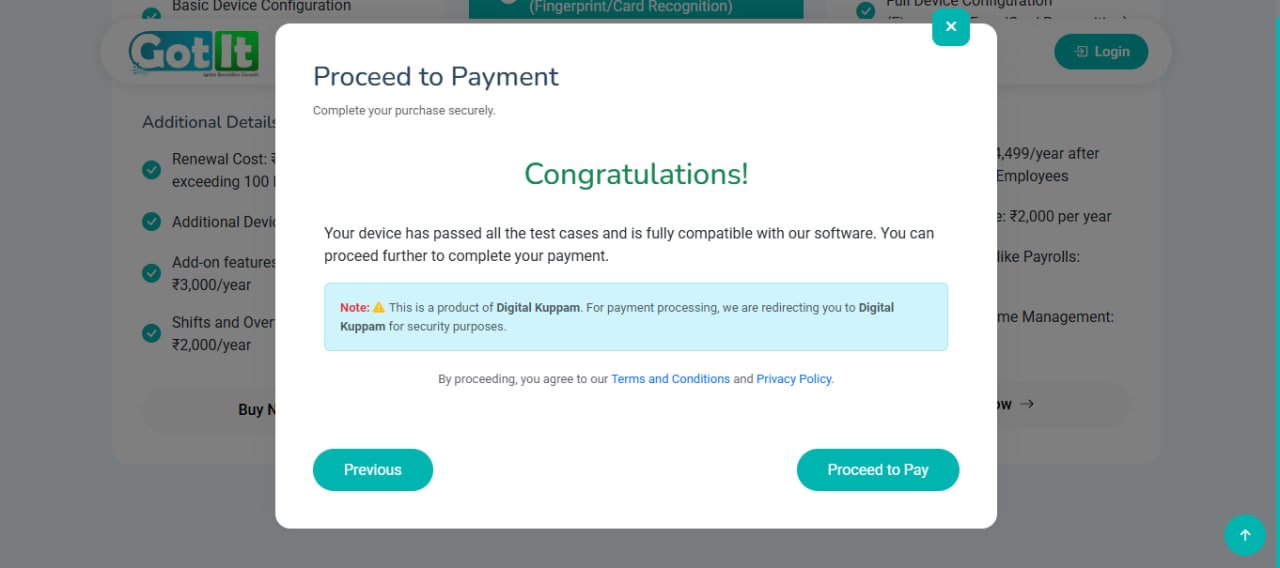
Confirm Your Plan
Choose the Perfect Plan for Your Business
Finding the right HR management solution is crucial for streamlining your workforce operations. Choose a plan that best suits your company's size, requirements, and growth potential.
Click Confirm & Continue to activate your plan.
Register as a New Client
Registration Process – Onboarding New Clients
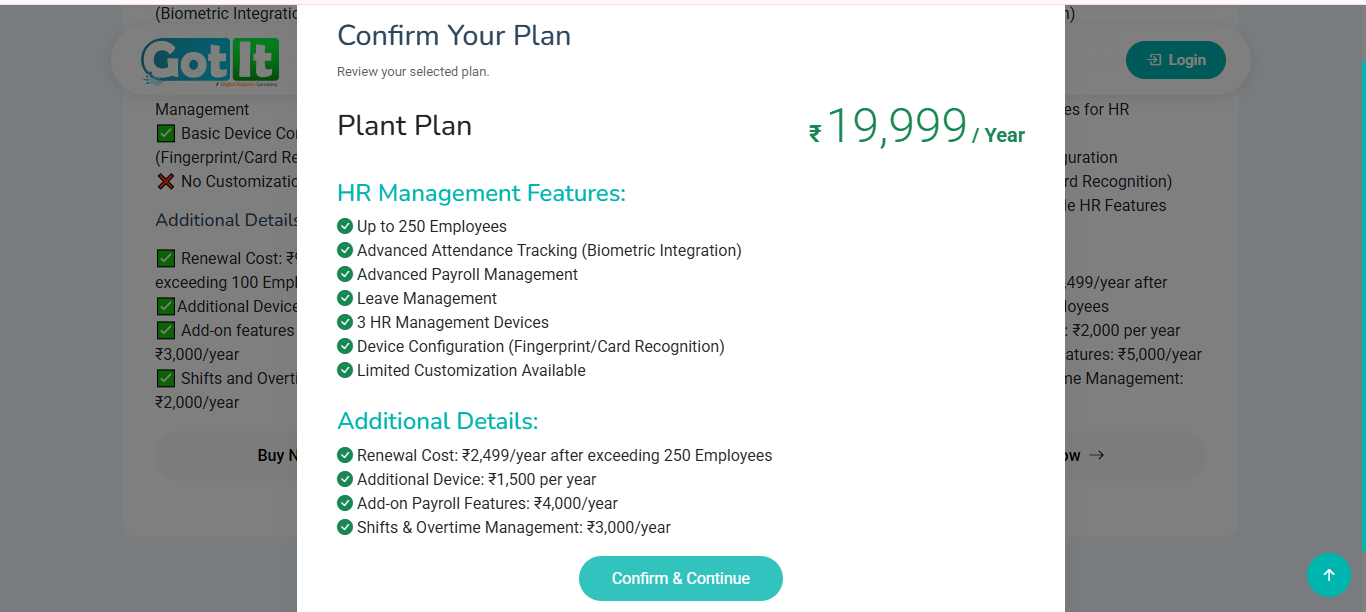
The registration process is the first step in onboarding new clients onto the Got-It HR Management System. To begin, users must select a suitable plan from the Pricing section and click on the "Buy Now" button. This action will open the "Register as a New Client" popup form.
Step 1: Enter Basic Information
Users need to provide the following essential details:
Users need to provide the following essential details:
📌 First Name & Last Name – Enter the full legal name.
📧 Email Address – Provide a valid email for communication and verification.
📞 Phone Number – Enter an active mobile number for authentication and support.
🔒 Password & Confirm Password – Create a strong password and confirm it for security purposes.
Once these details are filled in, click "Next" to proceed to company details.
Company Details
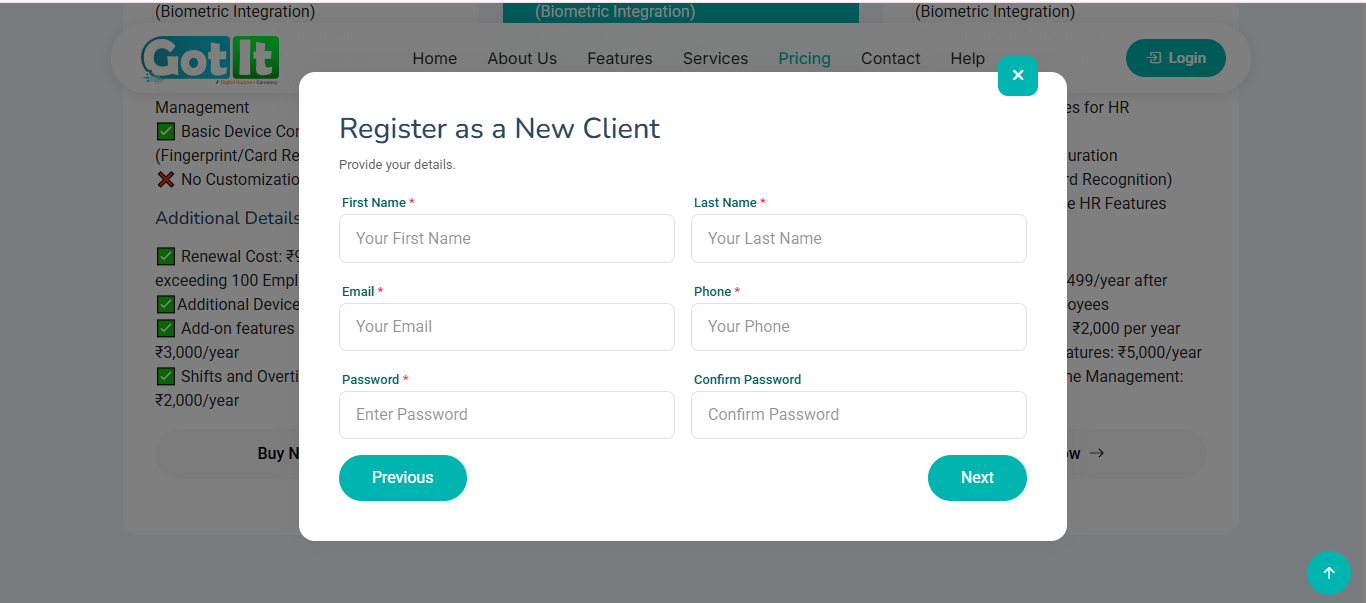
Enter Company Details
Users need to provide the following essential company information:
🏢 Organization Name – Enter the full legal name of your company. (Required)
👥 Organization Size – Select the range that reflects the number of employees in your organization. (Required)
🏭 Industry – Choose the business sector your company operates in. (Required)
📧 Email Address – Provide your organization’s official email for communication and verification.
📞 Phone Number – Enter an active contact number for authentication and support. (Required)
🆔 GSTIN – Input your company’s Goods and Services Tax Identification Number (optional).
Address Details
📍 Address – Enter the full business address, including building name/number.
📍 Landmark – Provide a nearby landmark for easy identification.
📍 City – Mention the city where your company is located.
📍 State – Select your state from the dropdown.
📍 Pin Code – Enter the area’s postal code.
🖥️ No. of Devices – Specify the number of biometric or other devices to be integrated with the HR system. (Required)
Once all details are filled in, click "Next" to proceed with plan confirmation and payment.
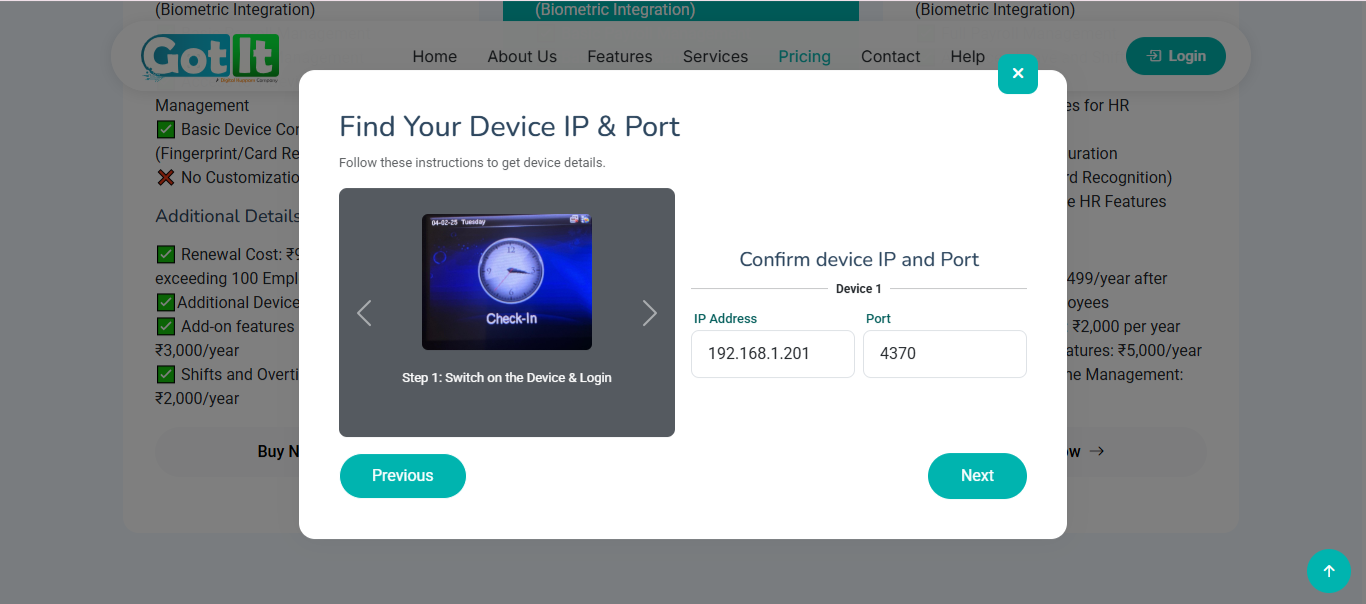
Find Your Device IP & Port
The next step in the onboarding process is to configure your biometric attendance devices with the Got-It HR Management System. This integration ensures seamless tracking and management of employee attendance.
Device Details
- Device Name – Enter the specific name or model of the biometric device.
- Device IP Address – Provide the IP address assigned to the device for network connectivity.
- Port Name – Specify the port used for communication between the device and the system.
- Device Address – Enter the location or specific address where the device is installed.
Find Your Device IP & Port
Follow these instructions to get device details.
Once you’ve located the correct IP and port, enter them in the fields provided and click "Next" to proceed with the setup.
Download software
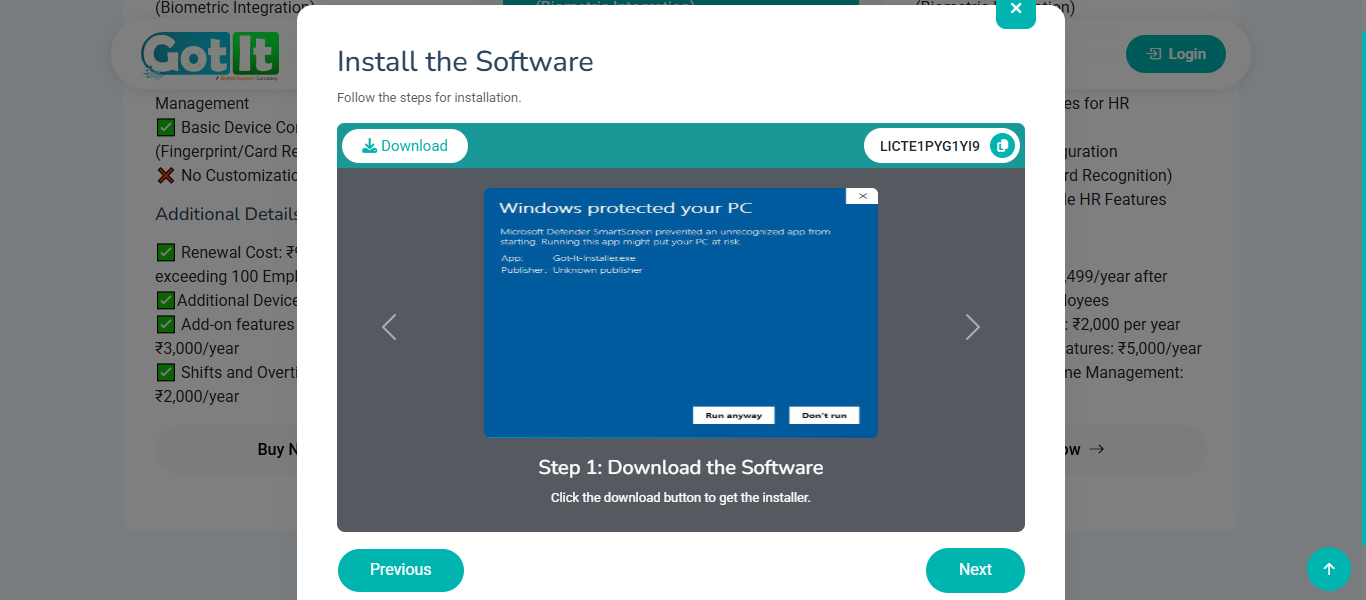
To ensure seamless HR management, users need to download and install the Got-It HR Software on their system. Follow the steps below for a smooth installation process.
Step 1: Download the Software
✅ Click the "Download Software" button to get the latest version of the installer.
✅ The software is designed for Windows and helps streamline attendance and payroll management.
✅ The installer file is hosted on a local server and can be accessed via a provided link.
Step 2: License Key Activation
🔑 A unique license key is provided for activation.
📋 Click the "Copy" button to easily copy and use the key during installation.
Step 3: Installation Steps
1️⃣ Download & Open the installer.
2️⃣ Enter the Domain associated with your organization.
3️⃣ Input the License Key when prompted.
4️⃣ Click "Start" to complete the activation and begin using the software.
Navigation & Assistance
⏮️ Use Previous and Next buttons to go through the installation steps.
👀 A preview of the installation process is displayed for guidance.
🆘 If you encounter any issues, visit the Support section for help.
Device Compatability
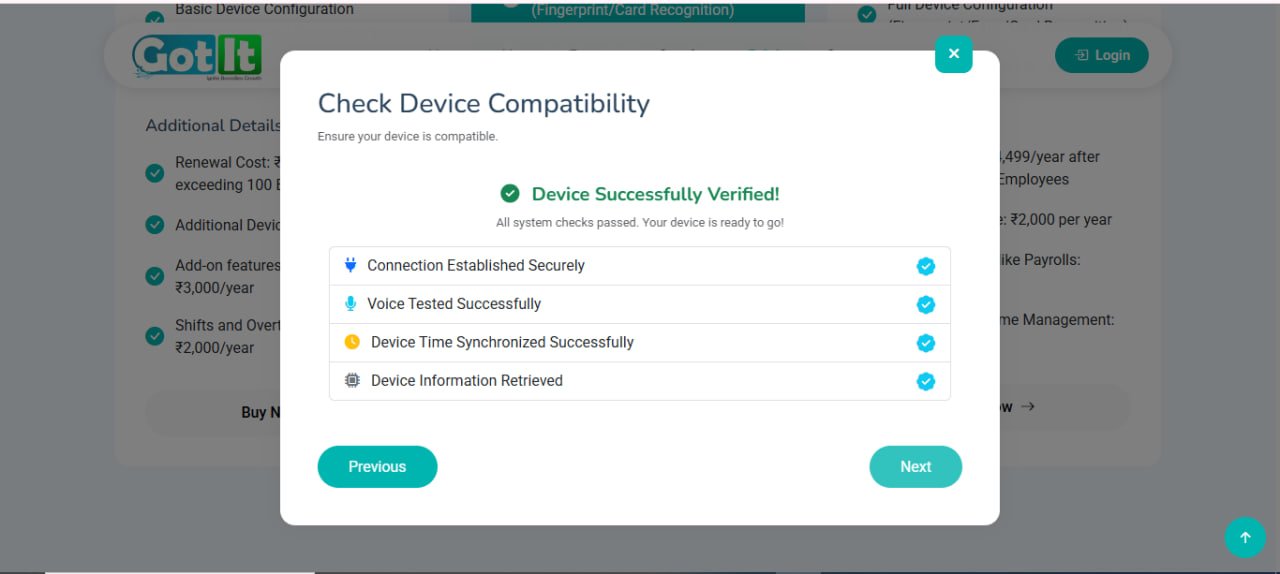
Before proceeding, ensure that your device meets the necessary system requirements for seamless integration with Got-It HR Software.
Important Instructions:
✅ Complete all previous steps before moving forward.
🔑 Ensure the license key is entered correctly.
🚀 Launch the software to verify device compatibility.
Why is this step important?
✔️ Ensures smooth installation and proper functionality.
✔️ Prevents errors and potential performance issues.
✔️ Helps confirm system requirements before activation.
If you encounter any issues:
⚡ Double-check the license key and ensure it is entered correctly.
🔄 Restart the software and try again.
📞 If the issue persists, contact support for further assistance.
Configuration & Payment
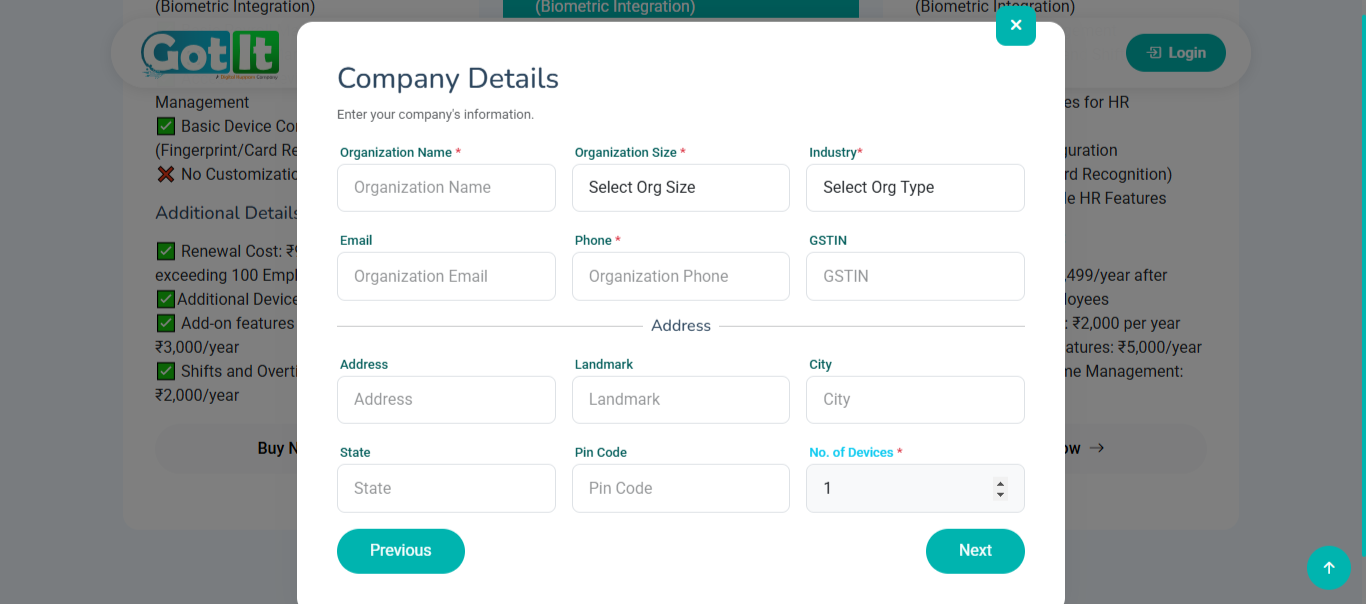
Proceed to Payment
💳 Complete your purchase securely and finalize your subscription.
Congratulations! 🎉
✅ Your device has passed all test cases and is fully compatible with our software.
📢 You can now proceed to complete your payment to activate the service.
Important Note
🛡️ This is a product of Digital Kuppam.
🔗 For security purposes, payment processing is redirected to Digital Kuppam.